


Apple’s iPhone 7 and 7 Plus are impressive pieces of technology. They’re undoubtedly the best iPhones Apple has produced to date. With their sleek design and powerful performance, these devices continue to set the standard for smartphones.
Although the design hasn’t changed significantly, there are many new features to explore, such as Force Touch and dual camera lenses. These advancements offer exciting possibilities for photography, productivity, and overall user experience. However, most people don’t fully grasp just how powerful their iPhone can be.
Fortunately for you, we’ve researched and compiled an extensive list of 101 tips and tricks to enhance your experience beyond what you might have imagined. From hidden settings to clever shortcuts, these tips will help you make the most out of your device.
You know, those tricks that the Apple experts never make obvious. Whether you’re a tech enthusiast or just looking to get more out of your phone, these insights are sure to improve your daily interactions with your iPhone.
So get ready to unlock the full potential of your iPhone 7 or 7 Plus. With these tips, you’ll be able to navigate your device like a pro and discover features you never knew existed. Enjoy exploring!
-
How to Force a Restart
The iPhone 7 and 7 Plus don’t use a physical home button, so the process for forcing a restart has changed.You’ll need to hold down the power button on the right side of your phone and the volume button on the left side simultaneously. Keep holding them down until your phone restarts and you see the Apple logo.
-
Make the Button Feel Like a Button
It definitely looks like a button, but it doesn’t click. There’s a good reason for that. Your iPhone 7 and 7 Plus use haptic feedback instead of a physical click.
In tech speak, that means ‘it vibrates to mimic the feel of pressing a button.
What’s cool is that you can customise the vibration intensity to better suit your preferences. Go to Settings, General, and then Home Button. Here, you can toggle between different levels of feedback.
If you want to turn it off completely, go to Settings and select Sounds & Haptics.
-
Wakey, Wakey, Rise & Shine
Thanks to the latest iOS 10 update, buttons are so last year. Your iPhone will automatically ‘wake up’ when you pick it up. This is incredibly handy for checking notifications, as you won’t have to go through the hassle of unlocking your phone.
This neat trick can be a huge time-saver.
I know, it doesn’t sound like much. But when you consider a recent study by Deloitte, which found that the average person checks their smartphone 47 times a day (and for those aged 18-24, it’s up to 74 times a day!), this feature really makes a difference. With this cool feature, you can give your thumbs a well-deserved break.
Alternatively, if you don’t like this feature, here’s how to switch it off:
Head to Settings and select Display & Brightness. You’ll find a slider to turn it off.
-
Drop It in the Toilet
Okay, maybe you don’t want to do that. That’s where your nasties are. But you can relax knowing that if the worst were to happen, your phone likely won’t be ruined.
Your iPhone 7 is water and splash resistant, so you can feel reassured if it falls into the toilet, bath, swimming pool, or any other body of liquid.
However, this doesn’t mean you should swim laps with it or start an underwater photography business. Apple advises against intentionally submerging your phone. It’s designed to survive an accidental drop in shallow water.
-
Don’t Charge After It’s Wet
Although your iPhone 7 is upgraded to be water-resistant, electricity isn’t. Don’t charge or plug in any electronics when your phone is wet. It won’t end well.
What makes the iPhone 7 really smart is that it will detect if any moisture is inside the handset. You’ll receive a clear warning message if this happens. If it does, here’s what you need to do: disconnect it from any plugs and keep it turned off until it’s completely dry.
-
Get to the Camera Faster
In those moments when you need to whip out your phone and snap a once-in-a-lifetime pic, you need to access your camera quickly.
So where has the little camera icon on the lock screen gone? It’s not there anymore! Don’t worry, you don’t have to go through the mundane process of unlocking your phone.
With your iPhone 7, all you need to do is lift your phone and swipe left, and your camera is ready to go. Snap away!
Don’t worry—this doesn’t mean anyone can access your phone. As before, opening the camera won’t unlock your phone. Your private photos will remain private.
-
Take Stunning Photos
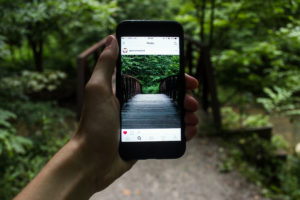
iPhone cameras have always been excellent, and they’re even better with the iPhone 7 and 7 Plus.
Your camera features a new 12MP sensor with optical image stabilization, 60% faster performance, wide colour capture, and a lens that allows for 50% more light. Even in low-light conditions, you’ll capture pristine images.
Need to snap photos in a dimly lit club? Use the flash. It’s 50% brighter, reaches 50% further, and compensates for flickering lights.
-
Take Better, Faster Selfies
But first, let me take an even better selfie.
The front camera has been upgraded from 5MP to 7MP. This means better selfies and improved FaceTime video chat.
A great trick for taking even better selfies is to use the volume button on a pair of attached headphones. This will reduce camera shake and ensure you always look your best.
-
Better Live Photos
Introduced with the iPhone 6s, Live Photos capture moments as mini videos by recording frames just before and after you press the shutter button.
However, the results were often jerky. But with the iPhone 7, Live Photos has benefited massively from upgraded stabilization. Plus, you can use new editing tools to enhance your photos.
Here’s a cool tip: the editing tools are available to third-party app developers, so you can download even more fun editing tools to play with.
-
Better Instagram Photos
Instagram has kept pace with the iPhone 7 and 7 Plus. They’ve updated their app so you can fully utilise the improved camera and colour capture.
You can now share images in more vivid colours, thanks to the enhanced colour capture display on Instagram. While the improvements may not be immediately obvious, a comparison with older photos will reveal the difference.
-
Shoot RAW Images
If you’re a fan of mobile photography, you’ll love this trick. You can now shoot RAW images and edit them later with an app or on your computer. This will seriously up your photography game.
To do this, you’ll need to download a custom camera app. I recommend the Manual App.
Once you’ve downloaded it, launch the app and open Settings. Make sure ‘Save RAW + JPEG’ is enabled. The app will then display a new action sheet from the bottom—choose between RAW and RAW + JPEG. I recommend selecting RAW, as the latter will take up extra space on your device.
You’re now ready to shoot RAW images.
-
Use Depth of Field with Your Camera
The iPhone 7 Plus features two lenses on its back: one with a 28mm focal length and another with a 56mm focal length. This not only allows for zoom with less distortion but also lets you shoot using a depth-of-field effect.
This effect keeps your subject in sharp focus while blurring the background—photography enthusiasts know this as the bokeh effect.
You can access this effect by using Portrait Mode. The option appears in the carousel of different camera modes, so just swipe to select it. Let the iPhone 7 do the rest of the work.
-
Shoot in 4K Resolution
You might not own a 4K TV, but with your iPhone 7, you can shoot in ultra-high-definition format!
To activate this, open Settings, then Photos & Camera, and scroll down to the Camera section. Tap ‘Record Video’ to choose from various resolutions: 720p at 30 frames per second up to 4K.
Be warned, shooting in 4K resolution uses up a lot of storage space. A minute of 4K video will take up 350MB—nearly 6 times more than a minute in the lowest resolution. But it does look fantastic.
-
Change Panoramic Direction

Sometimes there’s a pesky tree or person in the way of your picturesque panoramic shot. To fix this, you can switch the direction.
Simply tap the arrow in the middle of your screen when you’re in panoramic mode.
-
Lock Camera Lens (7+ Only)
This feature is only available for the iPhone 7 Plus. It prevents you from accidentally switching between the two camera lenses on the back, which can ruin your video by causing flickering.
To lock your lens, go to Settings, then Photos & Camera, and then Record Video. You’ll be able to toggle the ‘Lock Camera Lens’ option.
-
Zoom Without Using the Camera App
Activate the Magnifier feature by going to Settings > General > Accessibility > Magnifier and toggle it on. To use it, triple-click the Home button. You can capture images and zoom in and out using the white circle button.
-
Take Photos While Filming
To capture photos while recording a video, simply tap the Camera Button that appears on your screen during recording.
-
Keep Your Favorite Camera Settings
Save your favorite camera settings by going to Settings > Photos & Camera > Preserve Settings and toggle on Camera Mode.
-
Edit Memory Movies
In the Photos app, access Memories and tap on the video you want to edit. Use the three horizontal lines with a circle icon to adjust the title, music, duration, and photo/video selection.
-
Search for People, Places, and Things in Photos
Tap the magnifying glass icon in the Photos app and use keywords to find specific images in your library.
-
Improved Sound
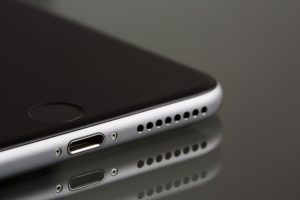
Without a headphone jack, your iPhone 7 has enhanced sound quality. Amplify sound by placing your phone in an empty glass vase or pitcher.
-
No More Wire Tangling
Apple’s AirPods connect automatically, pause music when removed, and use Siri with a double-tap. They feature beam-forming microphones for clear voice capture.
-
Find Hidden Menus with Force Touch
Press harder on app icons or the lock screen to reveal hidden menus and shortcuts, such as creating a new post on Instagram.
-
Adjust the Flash Light
Press harder on the flashlight icon in Control Center to adjust its brightness levels.
-
Start a Preset Timer Faster
Use Force Touch on the timer icon in Control Center to quickly start a preset timer.
-
Fast Unlock with Touch ID

Enable Rest Finger to Open under Settings > General > Accessibility > Home Button to unlock your iPhone with a light touch instead of a press.
-
Create a Super Secure Alphanumeric Passcode
Set an alphanumeric passcode by going to Settings > Touch ID & Passcode > Change Passcode > Passcode Options.
-
Make Your iPhone Harder to Hack with Two-Step Verification
Enable Two-Factor Authentication by going to Settings > [your name] > Password & Security (for iOS 10.3 and later) or Settings > iCloud > [your Apple ID] > Password & Security (for iOS 10.2 and earlier).
-
Customize Your Lock Screen
Add or rearrange widgets on your lock screen by swiping left to access the Today screen, then scrolling down and tapping Edit.
-
Change Lock Screen Limits
Restrict lock screen information by going to Settings > Touch ID & Passcode and disabling options you don’t want visible.
-
Send Texts Without Unlocking Your Phone

Reply to messages directly from the lock screen by pressing firmly on the received message.
-
Send Secret Hidden Messages
Use Invisible Ink for hidden messages by tapping and holding the blue send arrow in iMessage and selecting Invisible Ink.
-
Text Music and Images with iMessage Apps
Access iMessage apps by tapping the grey arrow on the left and exploring options like GIFs, music, and Shazam tags.
-
Send Low-Quality Images To Save Data
Save data by sending low-quality images through iMessage by going to Settings > Messages and enabling Low Quality Image Mode.
-
Disable Flashy Message Effects
Reduce motion effects by going to Settings > General > Accessibility > Reduce Motion.
-
Send Handwritten Messages
In landscape mode, tap the handwriting button in iMessage to write and send handwritten messages.
-
Multilingual Typing
Add multiple languages to the QuickType keyboard via Settings > General > Dictionary and Settings > General > Keyboards > Add New Keyboard.
-
Swap Words For Emojis
Replace words with emojis by tapping the emoji suggestion at the top of the keyboard or using the emoji button after typing your message.
-
See When a Message Was Sent
Swipe right to left in the Messages app to view timestamps for individual messages.
-
Disable Read Messages
Turn off read receipts for specific conversations by tapping the ‘i’ icon and toggling Send Read Receipts off.
-
Customize Autocorrect Text Replacement
Create shortcuts for phrases by going to Settings > General > Keyboard > Text Replacement and adding new shortcuts.
-
Quickly Add Symbols on Keyboard
Hold down the 123 key, slide to select a symbol, and release to quickly add symbols and return to the letter keyboard.
-
Add Full Stop Faster
Double-tap the space button to add a full stop.
-
Shake Your iPhone to Undo
Shake your iPhone to bring up the Undo/Redo box, or use the Undo button in landscape mode on the keyboard.
-
Turn Your Keyboard into a Track Pad
Press down on the keyboard to turn it into a trackpad for precise cursor control.
-
Have Your Phone Read Texts To You
Enable Speak Selection in Settings > General > Accessibility to have text read aloud by long-pressing on it.
-
Increase or Decrease Text Size
Adjust text size by going to Settings > Display & Brightness > Text Size.
-
Make Your iPhone Flash When You Receive a Message
Enable the LED Flash for Alerts in Settings > General > Accessibility > Hearing.
-
Create Custom Ringtones and Alert Tones
Create and sync custom ringtones by editing tracks in iTunes or GarageBand.
-
Track Your Sleep Pattern
Use Bedtime mode in the Clock app to set sleep goals and alarms.

-
Night Shift Mode
Enable Night Shift in Settings > Display & Brightness > Night Shift to reduce blue light at night.
-
Enable Color Filters
Adjust color filters for better visibility by going to Settings > General > Accessibility > Display Accommodations > Color Filters.
-
Learn the Lyrics to Your Favorite Songs
View lyrics in the Music app by tapping Now Playing and selecting Lyrics if available.
-
Control Media Playback
Access media playback controls by swiping left on the Control Center.
-
Queue Up the Next Song
Force press a song in the Music app and select Play Next to queue it up.
-
Set Music on a Timer
Set a timer to stop music or audio playback in the Clock app by choosing Stop Playing under When Timer Ends.
-
Optimize Apple Music Storage

Manage music storage by going to Settings > Music > Optimize Storage and selecting storage limits.
-
Quickly Manage Your iCloud Storage
Check iCloud storage usage by going to Settings > [your name] > iCloud.
-
Find Outdated Apps
Locate outdated apps by heading to Settings > General > About > Applications.
-
Open App Switcher Faster
Use 3D Touch by pressing down on the left edge of the screen to bring up the App Switcher.
-
Make The Apps Come to You
Double-tap the home button to bring apps and folders down for easier access.
-
Customize Your App Icons
Change app icons if supported by the developer, such as with MLB.com At Bat and NHL App.
-
Tap Your Way to The Top
Tap the top of your iPhone screen to quickly scroll to the top of a page. Useful in apps that support this feature.
-
Skip Calls With Remind Me Later Option

Set automatic text replies to missed calls with a swipe or tap. Customize messages in Settings > Phone > Respond With Text.
-
Prevent Spam Calls
Use apps like Hiya to block spam calls. Manage these apps in Settings > Phone > Call Blocking & Identification.
-
Call Uber in Maps
Search for a destination in Maps, select Get Directions, and choose Get a Ride to use Uber or other ridesharing apps.
-
Get Weather Report in Maps
Use 3D Touch on the temperature in Maps for a quick weather forecast. This feature might vary by iOS version.
-
Pay with Your iPhone
Set up Apple Pay in the Wallet app for contactless payments at supported terminals and online in Safari.
-
Save Battery Power
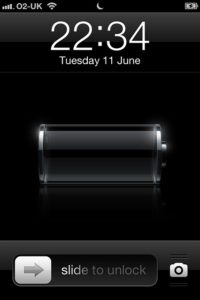
Activate Low Power Mode in Settings > Battery to extend battery life by disabling certain features.
-
Show Battery Percentage
Enable battery percentage in Settings > General > Usage to see the exact amount of battery left.
-
Identify Battery Sponges
Check which apps use the most battery in Settings > General > Usage > Battery Usage.
-
Charge Your Phone Faster
Turn on Airplane Mode to speed up charging by reducing background activities.
-
iPhone Not Charging? Try This
Clean the charging port with a toothpick if your iPhone isn’t charging properly.
-
Save Data by Limiting App Access
Control which apps use mobile data in Settings > Mobile Data.
-
Wi-Fi Troubleshooting

Troubleshoot Wi-Fi issues via Settings > Wi-Fi, where you’ll get tips for resolving connection problems.
-
Improve Your Phone Signal with this Hidden Mode
Dial 3001#12345# to access Field Mode and view your signal strength numerically for better reception.
-
Search the Web Faster
Hold down the period key in the URL bar to quickly access common domain suffixes (.com, .org, etc.).
-
Word Finder on Web Pages
Search for a word or phrase on a web page by typing it into the URL bar and selecting the “On This Page” section.
-
Go Back Without a Button
Swipe left to right to go back in most apps, mimicking a back button.
-
Clear All Notifications at Once

Use 3D Touch on the ‘X’ in Notification Center to clear all notifications at once.
-
Close 3 Apps at the Same Time
Swipe up with three fingers in the multitasking menu to close three apps simultaneously.
-
Quick Delete in Calculator App
Swipe left or right on the number display in the Calculator app to delete digits one by one.
-
Bad at Math, Get Siri to Do It
Ask Siri to solve math problems by speaking them out loud for quick calculations.
-
Correct Siri’s Punctuation
Correct Siri’s pronunciation by saying, “That’s not how you pronounce…” and providing the correct pronunciation.
-
Make Siri Respond Faster
Hold down the Home button while speaking to Siri for a faster response.
-
Put Up a Shelf

Use the Compass app’s spirit level feature to ensure your shelf or other objects are level.
-
Save PDFs to iBooks
Save web pages as PDFs to iBooks by tapping Share and selecting Save PDF to iBooks.
-
Collaborate on Notes
Share and collaborate on Notes with others by tapping the circular ‘head’ icon and inviting people.
-
Make Your iPhone Kid-Friendly
Set up restrictions in Settings > Screen Time to control what kids can access on your iPhone.
-
Use Apple ID Without a Credit Card
Create an Apple ID without a credit card for limited access or use iTunes gift cards for purchases.
-
Change Your Screen Timeout Length

Adjust screen timeout settings in Settings > Display & Brightness.
-
Record Your IMEI Number
Find and record your IMEI number in Settings > General > About for security purposes.
-
Discover What Your iPhone Knows About You
View frequent locations and data collected about you in Settings > Privacy > Location Services > System Services > Frequent Locations.
-
Hide Images Without an App
Use the editing feature to crop images to a tiny size, effectively hiding them without a separate app.
-
Potentially Save Your Life
Set up Medical ID in the Health app to provide emergency information accessible from the lock screen.
-
Make Your iPhone Run Faster in 10 Seconds
Clear RAM by holding the power button and then the Home button to improve performance.
-
Stop Your iPhone From Tracking You

Disable Frequent Locations tracking in Settings > Privacy > Location Services > System Services.
-
Save Storage by Automatically Deleting Old Texts
Set your iPhone to delete old messages automatically in Settings > Messages > Keep Messages.
-
Prioritize Your App Updates
Use 3D Touch to prioritize app updates and manage them more efficiently.
-
Use Siri To Identify Song Names
Ask Siri to identify songs playing around you for quick music recognition.
-
Get Paid Apps For Free
Share purchased apps with family members using Family Sharing in Settings > iCloud > Family Sharing.
These tips can help streamline your iPhone experience, optimize performance, and make daily tasks easier.





The perfect pair! Custom Logo Cases TPU gel Apple iPhone Duo cases are in stock and ready for your custom creation ahead of the Apple iPhone Duo launch 🚀! Connect today for a complimentary proof and rendering. #AppleiphoneDuo #appleiphonecases #iphonecases #customiphonecases #CustomLogoCases ... See MoreSee Less
... See MoreSee Less
... See MoreSee Less