


Apple’s iPhone 7 and 7 Plus are seriously impressive pieces of technology. They’re arguably the best iPhones Apple has released so far.
While the design might seem familiar, there are plenty of new features to explore, such as Force Touch and dual camera lenses. However, many users don’t fully grasp just how powerful their iPhone can be.
Fortunately for you, we’ve dug up 101 tips and tricks to enhance your iPhone experience beyond your wildest expectations.
You know… those handy tips that Apple’s experts might not tell you outright.
So, get ready to unlock the full potential of your iPhone 7 or 7 Plus.
1. How to Force a Restart The iPhone 7 and 7 Plus lack a physical home button, so restarting them is a bit different.
To force a restart, press and hold the power button on the right side of your phone and the volume button on the left side simultaneously. Keep holding them until the phone restarts and you see the Apple logo.
2. Make the Button Feel Like a Button It might look like a button, but it doesn’t click. There’s a good reason for this—it uses haptic feedback instead of a physical click.
This means the phone vibrates to simulate the feeling of pressing a button. You can adjust the vibration intensity to suit your preference. Go to Settings, then General, and select Home Button to customise feedback levels.
If you prefer to turn it off completely, go to Settings and select Sounds & Haptics.
3. Wake Up Automatically With the latest iOS 10 update, you no longer need to press buttons to wake your iPhone. It’ll automatically ‘wake up’ when you pick it up. This is especially handy for checking notifications without having to unlock your phone.
This small feature can save you a lot of time. According to a recent Deloitte study, the average person checks their smartphone 47 times a day, with those aged 18-24 checking it 74 times a day!
If you’re not a fan of this feature, you can turn it off by heading to Settings and selecting Display & Brightness. There’s a slider to disable it.
4. Water Resistance While you probably don’t want to drop your iPhone in the loo, you can rest easy knowing that it’s water and splash resistant. It can handle drops in the toilet, bath, swimming pool, or any other liquid you might accidentally drop it into.
However, Apple advises against intentionally submerging your phone. It’s designed to withstand accidental splashes and brief immersion in shallow water.
5. Avoid Charging When Wet Even though the iPhone 7 is water resistant, you should avoid charging it when it’s wet. Electricity and moisture don’t mix well.
The iPhone 7 will detect moisture inside and display a warning message. If you see this message, disconnect your phone from any cables and keep it turned off until it’s completely dry.
6. Quick Access to the Camera When you need to capture a special moment quickly, you don’t want to waste time unlocking your phone.
To access the camera on your iPhone 7, simply lift your phone and swipe left. Your camera will be ready to go without unlocking your phone. Rest assured, this doesn’t give others access to your private photos; your phone remains secure.
7. Capture Stunning Photos The iPhone 7 and 7 Plus cameras are exceptional. With a new 12MP sensor, optical image stabilization, 60% faster performance, wide color capture, and a lens that allows for 50% more light, you can expect brilliant photos even in low light.
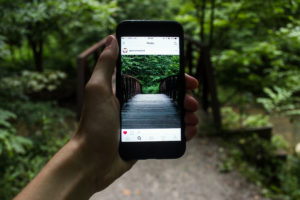
For club photos, the flash is 50% brighter and reaches 50% further, effectively compensating for flickering lights.
8. Take Better Selfies The front camera has been upgraded from 5MP to 7MP, improving selfie quality and FaceTime chats.
For even better selfies, use the volume button on your headphones. This reduces camera shake and ensures you look your best.
9. Improved Live Photos Live Photos, introduced with the iPhone 6s, capture a short video before and after the shutter button is pressed. While earlier versions were often jerky, the iPhone 7’s improved stabilization makes them much smoother. You can also use new editing tools to enhance your Live Photos.
A cool tip: Third-party app developers also have access to these editing tools, so you can download even more fun options.
10. Better Instagram Photos Instagram has updated to take advantage of the iPhone 7 and 7 Plus’s enhanced camera and colour capture. You can now share images with more vivid colours, and the difference is noticeable if you compare photos taken before and after the update.
11. Shoot RAW Images If you’re into mobile photography, you’ll love this. You can now shoot RAW images and edit them later using an app or on your computer, taking your photography to the next level.
Download a custom camera app like the Manual App, open Settings, and enable Save RAW + JPEG. You’ll get options for RAW and RAW + JPEG, but RAW will take up less space on your device.
12. Use Depth of Field (7 Plus Only) The iPhone 7 Plus has two rear lenses: a 28mm lens and a 56mm lens. This setup allows for better zoom with less distortion and lets you use a depth-of-field effect, which keeps your subject in sharp focus while blurring the background.
Access this effect using Portrait Mode. Swipe through the camera modes to select it, and let your iPhone 7 Plus handle the rest.
13. Shoot in 4K Resolution Even if you don’t have a 4K TV, you can shoot in 4K resolution with your iPhone 7. To enable this, go to Settings, then Photos & Camera, and select Record Video. You can choose from various resolutions, including 4K.
Be aware that 4K videos consume a lot of storage—one minute of 4K footage uses about 350MB of space, nearly six times more than the lowest resolution. But the quality is worth it.
14. Change Panoramic Direction If something is in the way of your panoramic shot, you can switch the direction. Just tap the arrow in the middle of the screen while in panoramic mode.

15. Lock Camera Lens (7+ Only) Available only on the iPhone 7 Plus, this feature prevents accidental switching between the two rear lenses, which can disrupt your video by causing it to flicker.
To lock your lens, go to Settings, then Photos & Camera, and toggle the Lock Camera Lens option.
16. Zoom Without Opening the Camera App You can now zoom in on distant objects without needing to open the camera app by using the Magnifier.
To enable it, go to Settings, then General, followed by Accessibility, and turn on the Magnifier. You can activate it by triple-clicking the Home button.
When using the Magnifier, press the white circle button to capture an image and adjust the zoom to get a closer look.
If triple-clicking doesn’t bring up the Magnifier, go to Settings, General, Accessibility, and then Accessibility Shortcut to set it to Magnifier.
17. Take Photos While Recording Video You no longer need to pause your video recording to snap a photo. Simply tap the Camera Button that appears on your screen while recording to capture a still image.
18. Preserve Your Favourite Camera Settings If you have preferred camera settings (like video mode, square format, panoramic, filters, etc.), iOS 10.2 now lets you save these so they’re automatically applied when you open the camera.
Head to Settings, then Photos & Camera, select Preserve Settings, and toggle on Camera Mode to save your favourite settings.
19. Edit Memory Movies With iOS 10, Memories are created from your photos and videos to help you relive favourite moments.
You can actually edit these mini slideshows. Go to Photos, then Memories, tap on the video at the top, and tap it again to bring up the controls. To start editing, tap the three horizontal lines with a circle icon in the bottom right.
You can then adjust the Title, Music, Duration, and select which photos and videos to include.
20. Search for People, Places, and Things in Photos This feature, borrowed from Google, is incredibly handy for locating images in a large library.
Open the Photos app, tap the blue magnifying glass (search button) at the top of your screen, and use keywords to find what you’re looking for. You can search by names, places, or things, and see all matching images in your library.
Once you find the image, you can do whatever you like with it.
21. Improved Sound Quality While the removal of the headphone jack was controversial, it actually improves sound quality. The old headphone jack couldn’t handle the new generation of high-resolution audio.

The speakers now offer a greater dynamic range and deliver twice the volume of previous iPhones. For a boost in volume, try placing your iPhone in an empty glass vase or pitcher to amplify the sound, which is great for entertaining.
22. No More Tangled Wires Tangled wires are a nuisance, but with Apple’s AirPods, you can avoid that frustration entirely. They not only eliminate tangled cords but also enhance sound quality.
AirPods connect automatically and detect when you’re wearing them. When you remove them, the music pauses, and they go to sleep to save battery.
A handy trick: a quick double-tap activates Siri, letting you use voice commands. Each AirPod has an accelerometer that detects when you’re speaking and uses a beam-forming microphone to focus on your voice, reducing background noise.
23. Discover Hidden Menus with Force Touch Don’t just swipe—press harder to reveal hidden menus. This feature is app-specific. For instance, hard-pressing the Instagram app icon will show a menu with options for a new post, search, or your activity page.
This also works on your lock screen. When you receive a message, use Force Touch to preview recent messages without unlocking your phone.
24. Adjust the Flash Light Another handy feature with Force Touch—swipe to open the control panel, then hard-press on the flashlight icon to choose between low, medium, and bright light settings.
25. Start a Preset Timer Quickly Force Touch continues to impress. Open the control panel and hard-press the timer to start a preset timer.
26. Fast Unlock with Touch ID When you’re in a hurry, Touch ID helps you unlock your phone quickly. This fingerprint sensor lets you unlock your phone with a full press or a light touch.

To adjust this setting, go to Settings, then General, then Accessibility. Find the Home Button option and toggle on Rest Finger to Open. With this setting enabled, you don’t need to press the button to unlock your phone—just touch it.
27. Create a Super Secure Alphanumeric Passcode By default, iOS prompts you to use a six-digit passcode, but you can opt for an alphanumeric passcode for enhanced security. This involves using both numbers and letters, creating a nearly limitless range of possible passwords.
To set this up, go to Settings, Touch ID & Passcode, select Change Passcode, and tap Passcode Options when prompted to enter a new passcode. Here, you can create a custom alphanumeric code.
28. Enhance Security with Two-Step Verification For added protection, enable two-step verification for your Apple ID. This is crucial as your Apple ID is used for various services like iTunes, iCloud, and the Apple Online Store.
For iOS 10.3 or later, go to Settings, [your name], Password & Security, enable Two-Factor Authentication, and tap Continue.
For iOS 10.2 or earlier, go to Settings, iCloud, tap your Apple ID, Password & Security, enable Two-Factor Authentication, and tap Continue.
29. Customise Your Lock Screen iOS 10’s updated Notifications Centre allows you to add useful widgets to your lock screen.
Swipe left on the home or lock screen to access the Today screen. Scroll to the bottom and tap Edit to add more widgets. You can also press and hold an app capable of being a widget, then tap Add Widget in the top-right corner.
This lets you access all the information you need right from your lock screen.
30. Control Lock Screen Information While having notifications on your lock screen is convenient, you might want to restrict what can be accessed without entering your passcode.
To customise visible information, go to Settings, Touch ID & Passcode. Here, you can disable any items you don’t want showing up on your lock screen.
31. Send Texts Without Unlocking Your Phone Reply quickly to urgent messages without unlocking your iPhone. The updated lock-screen widgets in iPhone 7 let you type out your reply without needing to enter a passcode.

Simply press firmly on a received message, and a window will pop up allowing you to respond swiftly.
While it might be a bit concerning if a cheeky friend has your phone, there are privacy settings in place. You can disable this feature, and it won’t allow access to your entire message history.
32. Send Secret Hidden Messages You can now send hidden messages or images that remain concealed until the recipient taps or swipes them.
Here’s how to do it:
After typing your message or selecting a photo, tap and hold the blue send arrow above the keyboard to reveal the effects. Then select the Invisible Ink option.
When your recipient receives your message, they’ll need to tap it to uncover the hidden content. After a few seconds, the message will be concealed again, keeping your secrets safe from prying eyes.
33. Text Music and Images with iMessage Apps iMessage now includes apps specifically designed for it. Access these apps by tapping the grey arrow on the left, then tap the icon that looks like drawing tools. Depending on the apps you’ve installed, you can choose from GIFs, music, and Shazam tags.
You can download new iMessage apps from the App Store by tapping the group of four smaller boxes in the bottom left of your screen.
34. Send Low-Quality Images to Save Data If you frequently send images via the Messages app, you might quickly use up your data allowance. To save data, you can now send low-quality images.
Go to Settings, then Messages, and toggle on Low Quality Image at the bottom.
35. Disable Flashy Message Effects If flashy message effects aren’t your thing or you suffer from motion sickness, you can easily disable them so your screen won’t be bombarded with balloons or confetti.
Go to Settings, General, Accessibility, then Reduce Motion, and turn the feature on. This will disable message effects and reduce other motion-based effects on your phone.
If you can’t send messages with these effects, it’s likely already disabled.
36. Send Handwritten Messages For a personal touch, you can send handwritten messages.
While in a conversation, rotate your iPhone to landscape mode and tap the handwriting button in the bottom-right corner. Write your message with your fingertip, and swipe left with two fingers if you need more space.
When finished, tap Done, and your handwritten message will appear in the conversation.
37. Multilingual Typing iOS 10 supports multilingual typing, allowing you to type in multiple languages simultaneously.
To set this up, go to Settings, General, Dictionary, and select the languages you wish to use with the QuickType keyboard. Once downloaded, return to General, select Keyboards, then Add New Keyboard, and choose the languages you’ve added.
You’ll be able to use all selected languages simultaneously, with appropriate next-word suggestions and autocorrect that recognises when you switch languages.
38. Swap Words for Emojis Emojis can often express more than words. With iOS 10, you can replace words with the relevant emoji.
You can do this in two ways. As you type, relevant emojis will appear at the top of your keyboard. Tap the emoji to replace the word you’ve just typed.

Alternatively, type your message, then tap the Emoji button. Words that can be replaced with emojis will be highlighted in orange. Tap a highlighted word to turn it into an emoji.
39. See When a Message Was Sent Usually, you only see the date and time of the first message in a conversation. However, you can view the timestamps of each individual message by swiping right to left in the Messages app.
40. Disable Read Receipts If you have a friend who gets upset when they see you’ve read their message but haven’t replied immediately, you can avoid this issue.
In iMessage, you can choose to send or not send read receipts – which let the sender know if you’ve read their message. This setting can be adjusted for each conversation.
To disable it, open the message window for the desired conversation, tap the little ‘i’ icon in the top right corner, and slide Send Read Receipts off.
41. Customise Autocorrect Text Replacement You can customise the QuickType keyboard to expand shortcuts into full words or phrases.
For instance, you might set “WTF” to expand to “Why The Face?” or “LOL” to “Lots of Love”.
To set this up, go to Settings, General, Keyboard, and select Text Replacement. Add a new one by tapping the plus sign.
You could also use this feature for a bit of fun by replacing common words with something unexpected. Watch the confusion ensue!
42. Quickly Add Symbols on the Keyboard Instead of tapping the 123 button, selecting a symbol, and then returning to the ABC keyboard, streamline the process.
Tap and hold the 123 button, slide your finger to select your symbol, and release. The keyboard will automatically switch back to letters.
Additionally, there are extra symbols available within the ones displayed. Hold your finger on a symbol to reveal additional options.
43. Add a Full Stop Faster A time-saving trick many iPhone users don’t know: instead of searching for a full stop in the symbol menu, simply double-tap the space button. This will instantly add a full stop.
Ensure you double-tap quickly; if you pause too long between taps, iOS will interpret it as adding two spaces.
44. Shake Your iPhone to Undo If you accidentally delete a lengthy and important sentence, you can quickly undo it by shaking your iPhone.

Shake the phone, and an Undo/Redo box will appear. If you prefer not to shake your phone, switch to landscape mode to find an undo button on the keyboard.
45. Turn Your Keyboard into a Trackpad This trick is perfect for quickly editing typos while typing.
Press down on the keyboard, and it will become blank. Without lifting your finger, move the cursor around the screen. Once on a word, press down to highlight it or press twice to select an entire section.
46. Have Your Phone Read Texts To You If reading texts is sometimes a hassle or you simply can’t be bothered, let your iPhone read them aloud for you.
Go to Settings, General, Accessibility, and enable Speak Selection. Now, when you long-press a message, you’ll see the option to Speak. Just be mindful that the message isn’t too sensitive to be read out loud.
47. Increase or Decrease Text Size Struggling to read the text on your screen, or finding the default size a bit too big? Adjusting the text size to your preference is easy.
Go to Settings, Display & Brightness, then Text Size, and you can adjust the text size to suit your needs.
Note that only apps that support Dynamic Type will adjust to your preferred text size.
48. Make Your iPhone 7 Flash When You Receive a Message If vibrations or sounds aren’t enough to grab your attention, you can have your phone’s flash blink when you get a message.
Go to Settings, General, Accessibility, and scroll to the Hearing section. Enable the LED Flash for Alerts option. Now, whenever you get a notification, your iPhone’s flash will blink to get your attention.
49. Create Custom Ringtones and Alert Tones Personalise your iPhone with custom ringtones and alert tones using any track from your iTunes Library. Create a short, sub-30-second version of your chosen track, convert the file type, and sync the ringtone to your iPhone.
For a more unique touch, use GarageBand to create a custom tone. Once you’re done, go to Share Options and choose Ringtone. You can then assign it to a contact or notification.
50. Track Your Sleep Pattern Try out the Bedtime feature to help monitor your sleep. Open the Clock app, select the Bedtime mode at the bottom of your display, and set your desired sleep duration and alarm days.

This feature not only sets an alarm but also tracks your sleep duration and reminds you when it’s time to go to bed.
51. Night Shift Mode If you find your phone screen too bright at night, Night Shift Mode can help. It reduces harsh colours to warmer tones, easing the strain on your eyes in low light.
To activate it, go to Settings, Display & Brightness, then Night Shift. You can schedule Night Shift to activate during specific times, so it automatically adjusts when you need it.
52. Enable Colour Filters For those with colour blindness, iOS 10 offers a variety of colour filters to help distinguish colours more easily.
Go to Settings, General, Accessibility, Display Accommodations, then Colour Filters. You can choose from options like Red/Green Filter, Green/Red Filter, Blue/Yellow Filter, and Grayscale. If none of these suit your needs, you can also set a colour tint for the whole screen.
53. Learn the Lyrics to Your Favourite Songs Avoid the awkward moment of mumbling along to a song when the music stops. iOS 10 allows you to view lyrics while listening to music.
In the Music app, tap the Now Playing section at the bottom to bring up the menu, and look for the Lyrics option. Note that not every song will have available lyrics.
54. Control Media Playback The Command Centre on your iPhone provides quick access to features like flashlight and calculator. Swipe up from the bottom of your screen to open it, and swipe left to access media playback controls. Here, you can manage the music and podcasts you’re listening to.
55. Queue Up the Next Song The Music app’s Up Next feature lets you queue the next song seamlessly.
While listening to a track, find the next song you want to play, and force press on it. A pop-up menu will appear with options like Add to Playlist, Share, and Play Next. Tap Play Next to have it play immediately after the current track.
56. Set Music on a Timer If you enjoy falling asleep to music or audiobooks, you can use a timer to stop playback automatically.
Go to the Clock app, tap Timer, and set your desired duration. Then, tap When Timer Ends, scroll to the bottom of the menu, and select Stop Playing. Start your music or audiobook, and when the timer ends, playback will stop.
57. Optimize Apple Music Storage To manage storage used by the Music app, you can optimise it with iOS 10.

Go to Settings, Music, and scroll down to Optimize Storage. Here, you can choose how much of your storage space will be allocated to music. Be aware that if you run low on space, your phone may delete tracks that haven’t been listened to recently.
58. Quickly Manage Your iCloud Storage To check your iCloud storage usage for photos, files, music, and emails, go to Settings, tap your Account ID at the top of the screen, and select iCloud. You can view your storage usage at a glance. For a detailed breakdown and to manage storage, tap on the graph.
59. Find Outdated Apps iOS 10.3 allows you to identify outdated apps that could slow down your phone.
To find these apps, go to Settings, General, About, Applications. If you see a “>” next to the number of installed apps, you have outdated apps. Tap on each app to check for updates.
60. Open App Switcher Faster Access the App Switcher quickly with 3D Touch. Press down on the left edge of your screen and swipe towards the centre to bring up your open apps, speeding up the process of switching between them.
61. Make The Apps Come to You If you struggle with reaching apps on the larger screens of the iPhone 7 and 7 Plus, double-tap your home button to slide all your apps down the screen for easier access.
Additionally, organise your apps and folders on your home screen so that frequently used ones are within easy reach of your thumb. This can greatly improve your user experience.
62. Customize Your App Icons Personalise your home screen with custom app icons offered by developers. Currently, apps like MLB.com At Bat and the NHL App allow you to change the icon to your favourite team. Hopefully, more apps will follow this trend in the future.
63. Tap Your Way to The Top Instead of scrolling back to the top of a page, tap the very top of your iPhone screen. This will work on most apps and some may offer an undo function if you tap it by accident.
Not all apps support this feature, so give it a try and see which ones do.
64. Skip Calls with Remind Me Later Option If you’re busy and can’t take a call, you can now automatically respond with a text message instead of letting it go to voicemail.

Swipe up on the phone icon next to the unlock slider and choose Respond With Text, or tap the Message button above the slider. Default options include “Sorry, I can’t talk right now”, “Can I call you later?”, and “I’m on my way”, but you can customise these by going to Settings, Phone, Respond With Text. You can replace one of the default options with your own message.
65. Prevent Spam Calls Spam calls can be incredibly annoying. To block them, follow these steps:
Firstly, you’ll need to download an app for the App Store, which will identify a potential spammer. I recommend one of the more popular apps Hiya. You can then view your spam-blocking apps by heading to Settings, Phone, Call Blocking and Identification.
66. Call Uber in Maps You can now use Maps to call an Uber or other ridesharing services. When in Maps, search for your destination, tap Get Directions, then select Get a Ride. You’ll be able to choose from any ridesharing app supported by Maps.
67. Get Weather Report in Maps Maps now let you check the weather for your destination without leaving the app. With iOS 10, you can use 3D Touch to press the temperature and view a 7-hour forecast. Press harder to open the full forecast in the built-in Weather app. Unfortunately, teleportation to your chosen destination isn’t yet a feature.
68. Pay with Your iPhone Apple Pay, available since the iPhone 6, lets you pay by tapping your iPhone at any terminal that supports Near Field Communication (NFC). To set it up, open the Wallet app and follow the steps to add your payment card. You can also make purchases in Safari on participating sites.
69. Save Battery Power If you’re out and about without a charger or power bank, use Low Power Mode to extend your battery life. This reduces power consumption by disabling certain features like Siri, background app refresh, and some visual effects, and dims your screen after a shorter period of inactivity.
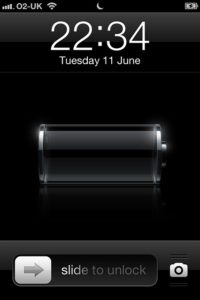
To enable this, go to Settings, Battery, and toggle on Low Power Mode.
70. Show Battery Percentage For a more precise view of your battery level, enable the battery percentage indicator.
Go to Settings, General, Usage, and toggle on Battery Percentage to see the exact percentage of battery remaining.
71. Identify Battery Drainers Since iOS 8, you can see which apps are using the most battery power.
To find out, go to Settings, General, Usage, and Battery Usage. This will help you identify apps that consume a lot of battery, even if you haven’t used them recently.
72. Charge Your Phone Faster To speed up charging, turn on Airplane Mode. This disables features that can drain your battery, helping your phone recharge faster. While it might not make a huge difference, it could give you the extra battery you need in a pinch.
73. iPhone Not Charging? Try This If your iPhone isn’t charging properly, lint in the Lightning port might be the issue. Use a toothpick to gently remove any lint build-up, which can sometimes solve charging problems.
74. Save Data by Limiting App Access If you’re running low on data, you can manage which apps use mobile data and which use Wi-Fi only. Go to Settings, Mobile Data, and toggle the switch next to each app to control its data access.
75. Wi-Fi Troubleshooting iOS can now troubleshoot Wi-Fi connection issues. If you see an exclamation mark over the Wi-Fi icon, go to Settings and select Wi-Fi. You’ll receive general tips on fixing your connection, such as restarting your router or contacting your ISP.

76. Improve Your Phone Signal with this Hidden Mode To find the best signal strength, enter 3001#12345# into your iPhone’s dialer and press call. This opens Field Test Mode, which displays signal strength in numerical form, helping you find areas with better reception.
77. Search the Web Faster To speed up web searches, hold down the full stop icon in the URL bar to access shortcuts for common domain suffixes (.com, .co.uk, etc.). This small time-saving trick can be useful for quick searches.
78. Word Finder on Web Pages To find a specific word or phrase on a web page, type it into the URL/search bar. Tap the section labelled “On This Page” to see all occurrences of the term highlighted. Navigate through them using the arrows at the bottom of the screen.
79. Go Back Without a Button If you’re new to iPhone and miss having a back button, you can swipe left to right in most apps to return to the previous page or menu. This gesture replaces the need for a physical back button.
80. Clear All Notifications at Once To clear all your notifications quickly, use 3D Touch on the ‘X’ at the top of the Notification Centre. Select Clear All Notifications to remove them all at once, leaving you with a clean slate.

81. Close 3 Apps at the Same Time Use multi-finger gestures to close multiple apps quickly. Drag three fingers up on the multitasking menu to shut down three apps simultaneously.
82. Quick Delete in Calculator App If you need to delete digits in the Calculator app, swipe across the number display at the top. Each swipe will remove one digit, similar to a real-life calculator.
83. Bad at Math? Get Siri to Do It You can ask Siri to solve math problems for you. Just activate Siri and speak your equations clearly. Siri can handle basic arithmetic and more complex calculations.
84. Correct Siri’s Pronunciation If Siri mispronounces a name or word, you can correct it. After the mistake, say “That’s not how you pronounce…” and provide the correct pronunciation. Siri will then use the updated pronunciation in the future.
85. Make Siri Respond Faster For a quicker response from Siri, press and hold the Home button while speaking. Release the button when you’re finished talking so Siri doesn’t need to detect when you’ve stopped speaking.
86. Put up a Shelf While your iPhone 7 won’t physically put up a shelf, it can help you get the job done. Open the Compass app (you might have tucked it away in a folder with Stocks and Find Friends). Swipe right to left to access the spirit level, which will help ensure your shelf is perfectly level. Remember to calibrate it on a flat surface before use.

87. Save PDFs to iBooks You can turn web pages into PDFs and save them to the iBooks app. If you find a document you’d like to read later, tap Share, scroll through the apps, and select Save PDF to iBooks. The web page will be saved to your iBooks library for future reference.
88. Collaborate on Notes Working on notes with others? You can now share and collaborate on notes using the Notes app. Tap the circular icon with the ‘head’ and ‘+’ sign to share your note. Your collaborators will be able to edit and contribute to the note.
89. Make Your iPhone 7 Kid-Friendly If your iPhone is likely to be used by a child, you can set up restrictions to control what they can access. Go to the Restrictions section in Settings, where you can disable apps and features like Siri, AirDrop, and CarPlay. You can also prevent app installations, deletions, and App Store purchases. If you’ve bought your child an iPhone 7 or 7 Plus, you can set content restrictions, such as limiting movie ratings and website access.
90. Use Apple ID Without a Credit Card You can create an Apple ID without a credit card, which is useful for managing purchases on your or your child’s iPhone. This allows only free app downloads, but you can use iTunes gift cards to add credit if desired. This helps control spending.
91. Change Your Screen Timeout Length If your iPhone’s screen keeps turning off too quickly, you can adjust the timeout setting. Go to Settings, Display & Brightness, and adjust the Auto-Lock setting to your preferred duration.

92. Record Your IMEI Number It’s important to record your iPhone’s IMEI (International Mobile Equipment Identity) number and store it safely. This unique identifier can be used to blacklist your device if it’s lost or stolen. To find your IMEI number, go to Settings, General, About, and scroll down.
93. Discover What Your iPhone Knows About You Your iPhone collects data about you, such as app usage and location history. To see this data, go to Settings, Privacy, Location Services, System Services, and then Frequent Locations. You’ll find a history of where you’ve been and how long you stayed.
94. Hide Images Without an App To hide certain photos without using an app, open your Photos library, select the photo you want to hide, then tap Edit and Crop. Adjust the cropping box to make only a small portion of the image visible, then tap Save. The original image will be hidden, but you can revert to the original by opening the photo, tapping Edit, and then Revert to Original.
95. Potentially Save Your Life You can set up a Medical ID on your iPhone, which can be accessed from the lock screen via the emergency options. This can display important information like your name, DOB, emergency contacts, medical conditions, and blood type. To set it up, go to the Health app, select Medical ID, and enter your details.
96. Make Your iPhone Run Faster in 10 Seconds To speed up your iPhone by clearing its RAM, press and hold the power button until the “Slide to Power Off” slider appears. Then, press and hold the Home button for about five seconds. This action clears the RAM, potentially speeding up your device.
97. Stop Your iPhone From Tracking You If you’re concerned about privacy, you can stop your iPhone from tracking your frequent locations. Go to Settings, Privacy, Location Services, System Services, and Frequent Locations. Clear your history and turn off the Frequent Locations option.

98. Save Storage by Automatically Deleting Old Texts To save storage space, set your iPhone to automatically delete old text messages. Go to Settings, Messages, Keep Messages, and select 30 Days. This will ensure that read messages are deleted after a month.
99. Prioritise Your App Updates If updating multiple apps, you can prioritise certain apps to update first. Use 3D Touch on the app that’s lower in the update queue to give it priority. You can also pause or cancel updates from this menu.
100. Use Siri To Identify Song Names Siri can identify songs playing around you. When you hear a song you want to know the name of, press the Home button and ask Siri to identify it. Siri will provide the song details and even offer an option to download it via iTunes.
101. Get Paid Apps For Free You can share paid apps with family members using Family Sharing. Go to Settings, tap your Apple ID, then Family Sharing, and add a family member. Once they accept the invitation, you’ll be able to share purchased apps with each other.





The perfect pair! Custom Logo Cases TPU gel Apple iPhone Duo cases are in stock and ready for your custom creation ahead of the Apple iPhone Duo launch 🚀! Connect today for a complimentary proof and rendering. #AppleiphoneDuo #appleiphonecases #iphonecases #customiphonecases #CustomLogoCases ... See MoreSee Less
... See MoreSee Less
... See MoreSee Less